How to Convert a Website to an APK for Free (2026 Guide)
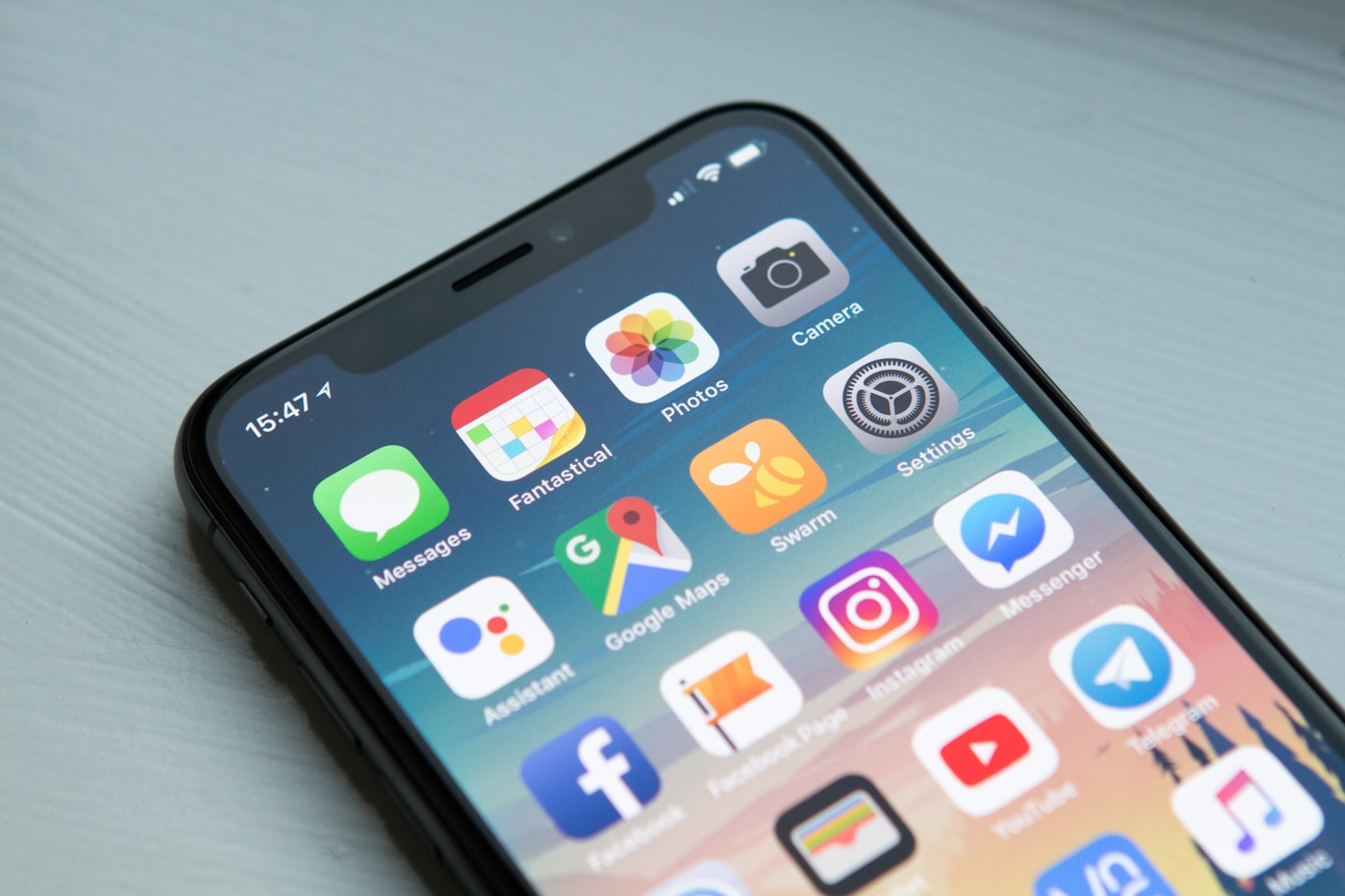
Short answer. To convert a website to an APK for free, paste your live HTTPS URL into a WebView-based builder such as Free App Maker, set an app name, package ID and icon, then build. You get a signed Android APK that opens your site full-screen. Building and previewing are free; downloading the signed APK is a one-time unlock, priced by country and shown before checkout.
That is the whole method in four sentences. The rest of this guide is the part that decides whether the app you end up with is any good: what an APK is, what a wrapper can and cannot do for you, how to install and test one, and the five things that actually break when a website becomes an app. If you would rather start from a single link than a full site, the link to APK converter follows the same flow.
One number worth having in your head before you invest a weekend in this: mobile is now the majority of web page views worldwide, but not by the margin the marketing pages suggest.
Statcounter's platform market share data put mobile at 52.57% of worldwide page views in July 2026, against 45.93% for desktop and 1.5% for tablets. A phone-shaped experience matters; a phone-shaped experience is not automatically an app.
Source: Statcounter GlobalStats — Desktop vs Mobile vs Tablet Market Share Worldwide, July 2026, checked 26 Aug 2026.
What an APK actually is
An APK is an Android Package — a single file, ending in .apk, that contains everything a phone needs to run one app: the compiled code, the images and layouts, the icon set, and a manifest describing what the app is called, what permissions it wants and which screen opens first. It is a zip archive with a specific structure and a cryptographic signature attached.
Three properties of an APK matter to you as a beginner:
- It is self-contained and shareable. An APK is a file. You can email it, put it on a download page, hand it to a tester over a chat app, or push it through a company's device management. No store approval sits between you and the person installing it.
- It must be signed. Android refuses to install an unsigned package. The signature ties every future update to the same key: an app signed with a different key is treated as a different app, which is why updates from a new key force an uninstall.
- Its package ID is permanent in practice. The ID —
com.yourbusiness.appand similar — is how Android tells your app apart from the other apps on the device. Change it after you have distributed the app and you have shipped a second, unrelated app rather than an update.
What a WebView wrapper does — and what it does not
Every free website-to-APK tool, ours included, is doing roughly the same thing: it builds a small Android app whose only screen is a WebView, and points that WebView at your URL.
WebView is a standard part of Android. Google's own documentation describes it as a class that "lets you display web pages as a part of your activity layout", and is blunt about the scope: "It doesn't include the features of a fully developed web browser, such as navigation controls or an address bar. All WebView does, by default, is show a web page." The same page notes that "JavaScript is disabled in a WebView by default" and has to be switched on deliberately — which a wrapper does for you.
Source: Android Developers — Build web apps in WebView, checked 26 Aug 2026.
The rendering is not a downgrade. Chrome's WebView documentation states that "The WebView component is based on the Chromium open source project" and that "WebView shares the same rendering engine as Chrome for Android, so rendering should be consistent between the WebView and Chrome." On Android 7, 8 and 9, WebView is built into Chrome itself; on other versions it ships as its own updatable component. That is also the honest correction to a claim you will see repeated online: WebView is kept current through the Google Play Store, not through Google Play Services.
Source: Chrome for Developers — WebView overview, checked 26 Aug 2026.
Since Android 7.0, users can even pick which installed package renders WebView content, which is another reason to test on a real handset rather than trusting one emulator.
Source: Android Developers — Manage WebView objects ("Starting in Android 7.0 (API level 24), users can choose among several different packages for displaying web content"), checked 26 Aug 2026.
So what do you actually get?
- Your site, full-screen, with your icon in the launcher and your splash screen on cold start.
- A real, installable Android package you can distribute as a file.
- Content that updates when your site updates — you publish to your server, and the app shows the new version on next load. No rebuild, no store review.
And what do you not get?
- Offline by default. The app loads a live URL. Your site needs its own service worker and cache for anything to work without a connection.
- Native device APIs for free. Anything the web platform cannot reach, a WebView cannot reach either.
- Browser UI. The Chromium project's WebView notes are explicit that "WebView doesn't render any UI elements outside of the content viewport" and that there is "no current API to render infobars, control how the URL or security status is shown (if at all), or similar features". No address bar, no browser install banner, no reader mode.
- Full web permissions plumbing. The same notes record that "The Web Permissions API is not implemented in WebView" — a real constraint if your site checks permission state silently before asking.
Source: Chromium project — Web platform compatibility in Android WebView, checked 26 Aug 2026.
None of that makes a wrapper the wrong choice. It makes it a specific choice: a good fit for content, catalogues, booking flows, dashboards and stores that already work well in a mobile browser, and a poor fit for anything whose core feature is a native sensor or a background service.
Before you start: a 6-point check
Run these six checks first. Each one prevents a specific failure later.
- Your site is publicly reachable. If it sits behind a VPN, a staging password or a localhost tunnel, the app will show an error screen on someone else's phone. Wrap the live URL.
- It is served over HTTPS. Not a nice-to-have — see the mixed-content problem in troubleshooting.
- It reads well on a phone. Open it in Chrome on a handset. If you are pinch-zooming, wrapping it will not fix that; the WebView shows the same page.
- You have a square icon, 512×512 pixels or larger, as a PNG. Non-PNG icon files are a common cause of failed builds.
- You have chosen a package ID. Reverse-domain form, lowercase, no spaces:
com.yourbusiness.app. Decide once. - You know which page should open first. The landing URL is a product decision, not a technical default.
Step 1: Check your site is ready to be wrapped
Spend ten minutes with your site in a phone browser before you build anything. Tap through the journey a real user takes: land, browse, search, add to cart or fill the form, log in, pay. Note anything that opens a new tab, anything that redirects to a different domain, and anything that asks for a file, the camera or a location. Those three categories are where wrapped apps get their bug reports, and knowing them now is cheaper than discovering them after you have shared an APK.
Step 2: Paste your live URL
Open the website to APK converter on our homepage and paste the full address, including the https:// prefix. This is the page that loads when someone taps your icon, so choose deliberately: a restaurant is usually better opening on the menu or the booking page than on a homepage hero, and a store is usually better opening on the catalogue than on an "about us".
If your site was generated by a builder rather than hand-written, the flow is the same but the URL you want differs by platform. We keep separate walkthroughs for WordPress, Wix and Bolt.new projects, each covering where that platform's published URL actually lives.
Step 3: Set the app name and package ID
App name. This is the label under the icon. Android truncates long names on the home screen, so short wins — roughly twelve characters is a safe target. Use the name people would search for, not your legal entity.
Package ID. Reverse-domain notation, lowercase letters, digits and dots only: com.yourbusiness.app. Two rules follow from how Android treats it. First, an ID that collides with an app already on the device will cause an install conflict. Second, changing it later produces a separate app rather than an update, so people would have to uninstall the old one and lose whatever state it held. If you are stuck, our package name generator produces a valid one from your domain.
Step 4: Upload an icon and set the splash screen
Upload one square PNG at 512×512 pixels or larger. The builder derives the smaller sizes from it, because Android does not use a single icon file — it picks the artwork matching the screen's density bucket.
Android's density guidance sets a 3:4:6:8:12:16 scaling ratio across buckets. Taking the medium-density baseline of 48×48 pixels, the five densities you will see in a modern app are mdpi 48, hdpi 72, xhdpi 96, xxhdpi 144 and xxxhdpi 192 pixels. That is why a small or non-square source image looks soft: there is nothing to scale up from. Upload the largest clean square you have, and prefer flat shapes over fine detail, since the launcher may mask your icon into a circle or squircle.
Source: Android Developers — Support different pixel densities, checked 26 Aug 2026.
For the splash screen, set the background colour to match your site's own background. The visible seam in a cheap wrapper is a white splash handing over to a dark page, or the reverse. If you need to produce the source square itself, the app icon generator will do it.
Step 5: Build and preview
Start the build and read the log rather than tabbing away. A WebView wrap usually finishes in about 60 to 90 seconds; most of that is packaging and signing, and it does not scale with the size of your website, because your site stays on your server. When a build fails, the log names the cause — most often an icon that is not a PNG, or a package ID with a character Android will not accept.
Building and previewing your app is free: no account beyond an email, no card, no subscription.
Step 6: Download the signed APK
When the build finishes you get a signed APK. Downloading it is covered by a one-time unlock, priced by country and shown before checkout, which also removes the small Free App Maker splash screen from the apps you build. There is no recurring fee and nothing that expires your app later.
Step 7: Install the APK on an Android phone
Installing an APK that did not come from a store is called sideloading. It is a supported, ordinary thing to do, and Android will ask you to confirm it twice. Here is the honest walkthrough, including the screens that look alarming.
- Get the file onto the phone. Email it to yourself, put it on a download link, transfer it by USB, or send it through a chat app. Downloading it in the phone's browser is usually the smoothest route.
- Tap the APK. Your file manager or browser will open Android's package installer.
- Grant "install unknown apps" to the app you opened it from. On Android 8.0 and later this is a per-source permission rather than one device-wide switch: Settings → Apps → Special app access → Install unknown apps, then pick the browser or file manager and turn on "Allow from this source". Android usually offers a shortcut straight to that screen when you tap the file.
- On Android 7 and earlier, the equivalent is the single legacy toggle at Settings → Security → Unknown sources.
- Expect a Google Play Protect screen. Tap through it if you are satisfied the file is yours, then open the app from the launcher.
The per-source model is a documented platform change, not a quirk of one phone: Android 8.0 made the legacy INSTALL_NON_MARKET_APPS setting always read 1 and moved the decision to a per-app check, canRequestPackageInstalls(). Managed work profiles can have sideloading disabled outright by an administrator, which is worth knowing if your testers are on company phones.
Source: Android Developers — Android 8.0 Behavior Changes, checked 26 Aug 2026.
About that Play Protect warning — the honest version
Google Play Protect checks apps installed from outside Google Play. Google's developer documentation describes it plainly: "When a user tries to install an app, Play Protect conducts a real-time check of the app against known harmful or malicious samples," and "If the app is identified as malicious or suspicious, we will warn users or block the installation in extreme cases."
Source: Google for Developers — Play Protect on-device protections, checked 26 Aug 2026.
What that means in practice: a caution screen on first install of a sideloaded APK is normal and expected, and it is a statement about the file's provenance rather than a finding against your app. It is also friction you are asking your users to accept, and you should plan for it — a short "here is what you will see" note next to your download link removes most of the support messages. If that friction is unacceptable for your audience, Play distribution is the answer, and that means an AAB.
Step 8: Test before you ship
Test on a physical phone. An emulator will not reproduce a real keyboard, a real network drop or a real payment app handover. Work through this list:
- Cold start: does the splash appear and hand over cleanly, without a colour flash?
- The hardware and gesture back navigation: does it go back a page, or straight out of the app?
- Login, including any third-party sign-in button.
- Checkout, all the way to a real (or sandbox) payment confirmation.
- File uploads and any camera capture control.
- Links that point off your domain: do they open sensibly, or trap the user?
- Rotation, if you have not locked orientation.
- Airplane mode: does the app fail with something readable, or a raw error page?
- A second, older handset if you can borrow one — different WebView provider, different result.
Our WebView compatibility checker flags several of these before you build, but it is not a substitute for ten minutes with a real device.
APK vs AAB: which one do you need?
An AAB (Android App Bundle) is not a rival file format for phones — phones cannot install one. Android's documentation defines it as "a publishing format that includes all your app's compiled code and resources, and defers APK generation and signing to Google Play", and explains that "Google Play uses your app bundle to generate and serve optimized APKs for each device configuration". The requirement is dated and unambiguous: "From August 2021, new apps are required to publish with the Android App Bundle on Google Play."
Source: Android Developers — About Android App Bundles, checked 26 Aug 2026.
| You want to… | Format | Why |
|---|---|---|
| Send the app to testers or customers directly | APK | It is a file. It installs. Nothing else is involved. |
| Host a download on your own website | APK | Same — plus a note about the install-unknown-apps prompt. |
| Distribute through company device management | APK | Managed deployment handles the install for you. |
| Submit a new app to Google Play | AAB | Required for new apps since August 2021. |
| Publish to another Android store | APK, usually | The bundle requirement is a Play rule, not a build restriction. |
Free App Maker produces a signed APK. If your route is Google Play, the AAB and the other Play Store files come in the Play Store Pack, and the full comparison lives in APK vs AAB: which should you upload to Google Play?
Budget for the account as well as the file. Google's Play Console Help states: "There is a US$25 one-time registration fee", and notes that developers may be asked for a valid government ID and a credit card in their legal name during verification.
Source: Google Play Console Help — Register for a Google Play developer account, checked 26 Aug 2026.
Troubleshooting: what genuinely breaks
These five account for the large majority of "it works in Chrome but not in my app" reports. Each has a real cause and a real fix.
1. Mixed content: images or scripts that silently do not load
Symptom: the page loads, but a logo, a font, a map or an embedded widget is missing, and nothing on screen explains why.
Cause: mixed content. Google's web.dev definition: "A page has mixed content when its initial HTML is loaded over a secure HTTPS connection, but other resources (such as images, videos, stylesheets, and scripts) are loaded over an insecure HTTP connection." Active mixed content — scripts, stylesheets, iframes — is the dangerous kind, and "most browsers already block this type of content by default". Chrome also "automatically upgrades passive mixed content", and where no secure version exists, "the asset doesn't load".
Source: web.dev — What is mixed content?, checked 26 Aug 2026.
Fix: search your templates and CSS for http:// and replace with https:// or protocol-relative URLs. Because a WebView shares Chrome's engine, a resource Chrome refuses will not load in your app either. Fix it on the site, not in the wrapper.
2. Payment redirects that leave the app and do not come back
Symptom: checkout hands off to a payment provider, a bank 3-D Secure page or a UPI app, and the user ends up staring at a blank screen or the wrong app.
Cause: payment flows redirect across domains and sometimes into other installed apps, then try to return via a URL scheme or deep link. A WebView has no address bar and no tab model to fall back on, so a return leg that assumes a browser can strand the user.
Fix: test the whole flow on a real device with a real card or a sandbox account before you distribute anything. Where a provider offers a hosted redirect flow and a modal or in-page flow, the in-page flow tends to survive a wrapper better. If your business depends on a handoff to a separate payment app, verify the return leg specifically, and treat that result as a go/no-go for a wrapped app.
3. "Sign in with Google" refusing to load
Symptom: your social login button opens a Google page that shows an error instead of the sign-in form; disallowed_useragent is the usual text.
Cause: Google discourages OAuth inside embedded webviews. Its own help page states that "Using OAuth for authentication in a WebView can make your app susceptible to security problems and hurt usability by disconnecting the user from single sign-on sessions", and recommends that "developers replace this WebView with a Chrome custom tab".
Source: Google Help — Remediation for OAuth via WebView, checked 26 Aug 2026.
Fix: the practical options are to offer email-and-password (or a magic link) as an alternative on your site, or to route the sign-in link so it opens outside the WebView. Other identity providers apply their own rules, so test each button you offer rather than assuming they behave alike. This is the single most common reason a wrapped app is not a fit, and it is better to find out before you ship than after.
4. Camera and file upload buttons that do nothing
Symptom: tapping "choose file" or "take photo" produces no reaction at all.
Cause: these are not automatic in a WebView; the host app has to wire them up. Android's own release notes describe both pieces. For files: "With the new onShowFileChooser() method, you can now use an input form field in the WebView, and launch a file chooser to select images and files from the Android device." For hardware: the PermissionRequest class "allows your app to grant the WebView permission to access protected resources like the camera and microphone, through web APIs such as getUserMedia()", and critically, "Your app must have the appropriate Android permissions for these resources in order to grant the permissions to the WebView."
Source: Android Developers — Android 5.0 APIs (WebView updates), checked 26 Aug 2026.
Fix: the wrapper has to declare the matching manifest permission and implement the callback. If your site needs camera capture or file uploads, say so when you build, and test that specific control on a device first. A wrapper that does not declare CAMERA cannot pass the permission through, however correct your web code is.
5. Your PWA install prompt does not appear
Symptom: the "Add to home screen" banner or your custom install button, which works in Chrome, is simply absent inside the app.
Cause: the install prompt is browser UI, and a WebView has none. The Chromium notes quoted earlier put it directly: "WebView doesn't render any UI elements outside of the content viewport", with "no current API to render infobars". There is also nothing sensible for it to do — the user is already inside an installed app.
Source: Chromium project — Web platform compatibility in Android WebView, checked 26 Aug 2026.
Fix: hide your install prompt when the page is running inside your app rather than a browser — a query parameter on the wrapped URL, or a check against the user agent string, is enough to gate it. Users seeing "install our app" inside the installed app is the tell-tale sign of a wrap nobody tested.
Free options, compared honestly
There is more than one way to get an APK without paying a developer, and they are not equivalent. Prices below were taken from each vendor's own pages and are correct as of 26 August 2026; check them before relying on a figure.
| Option | What it produces | Cost, as of 26 Aug 2026 | The honest catch |
|---|---|---|---|
| Free App Maker | Signed WebView APK of your live URL | Free to build and preview; one-time unlock to download, price shown before checkout | Wraps a live site, so the site has to be publicly reachable. AAB included in the Play Store Pack, with the graphics and form answers. |
| AppsGeyser | WebView-based Android app | States "The basic features are completely free for everyone"; its pricing page, on the monthly toggle, lists Starter $58/month, Individual $98/month and Master $238/month | The free and paid boundaries live on different pages, so read both before you commit. |
| PWABuilder | Android package built around a Trusted Web Activity | Free; the repository states "All files on the PWABuilder repository are subject to the MIT license" | Expects a real PWA (manifest, service worker) and a TWA needs Digital Asset Links verification of your domain. |
| Android Studio, by hand | Anything you can write | Free tooling; your time | A multi-gigabyte install, an SDK to configure, a keystore to manage, and Kotlin or Java to learn. |
Sources checked 26 August 2026 against each vendor's own pages: AppsGeyser homepage, AppsGeyser pricing, PWABuilder on GitHub.
The Trusted Web Activity route deserves a sentence of its own, because it is the genuine alternative architecture rather than a competing brand. Chrome's documentation describes a TWA as "a new way to open your web-app content such as your Progressive Web App (PWA) from your Android app using a protocol based on Custom Tabs", where the relationship "is verified using Digital Asset Links". Content is "rendered by the user's browser, in exactly the same way as a user would see it in their browser". That is a strength if your site is already a polished PWA and you control DNS; it is a barrier if it is not, or if you do not.
Source: Chrome for Developers — Trusted Web Activity overview, checked 26 Aug 2026.
Frequently asked questions
Is converting a website to an APK actually free?
Building and previewing your app with Free App Maker is free — no account, no credit card, no subscription. Downloading the signed APK is covered by a one-time unlock, priced by country and shown before checkout, which also removes the small Free App Maker splash screen from the apps you build. There is no recurring fee keeping your app alive.
What is the difference between an APK and an AAB?
An APK is the installable package a phone actually runs. An AAB, or Android App Bundle, is a publishing format that hands APK generation and signing to Google Play. Android's own documentation states that from August 2021, new apps are required to publish with the Android App Bundle on Google Play. So an APK is what you sideload or share directly, and an AAB is what a new Play Store submission needs. Free App Maker builds a signed APK; the AAB comes in the Play Store Pack, together with your signing key, a hosted privacy policy, the store graphics and the answers to Google's forms.
Can I put a WebView APK on the Google Play Store?
Not with the APK by itself. Google Play requires an Android App Bundle for new app submissions, and a Play Console developer account carries a US$25 one-time registration fee according to Google's own Play Console Help, checked 26 August 2026. If Play is your goal, get the AAB in the Play Store Pack and budget time for the listing, the data safety form and Google's review.
Will my app work without an internet connection?
By default a WebView app loads your live site, so it needs a connection in the same way a browser tab does. If your site already ships a service worker and caches its shell, that cached content can also be available inside the app. A wrapper does not add offline support to a site that does not have it.
Why does Android warn me when I install the APK?
Because the file did not come from the Play Store. Android asks you to allow the app you are installing from — a browser, a file manager, a chat app — to install unknown apps, and Google Play Protect may run a check first. Google's Play Protect documentation describes a real-time check of the app against known harmful or malicious samples when a user tries to install an app. The screen is expected for any sideloaded APK and is not a verdict on your app.
Can I convert a website I do not own?
You can technically paste any URL, but you should only wrap sites you own or have written permission to distribute. Wrapping someone else's site can breach their terms of service and their copyright, and app stores treat unauthorised repackaging as a takedown reason.
How is a WebView APK different from a PWA?
A PWA is installed from the browser and depends on the browser's install flow. A WebView APK is an ordinary Android package: you can hand it to someone as a file, host it yourself, or push it through device management, and it appears in the launcher with your icon. A third option, a Trusted Web Activity, renders your PWA in the user's browser engine but requires you to prove you own the domain using Digital Asset Links.
How long does the build take?
A WebView wrap usually finishes in about 60 to 90 seconds. Most of that is packaging and signing rather than anything to do with the size of your site, because the site itself stays on your server.
Where to go next
If your site works well in a mobile browser, wrapping it is a short afternoon: check the six points, paste the URL, set a name and an icon, build, install, and spend ten honest minutes testing login, checkout and uploads on a real phone. If one of those three fails, you have learned something valuable cheaply — and you know exactly which part of your site to fix first.
From here: APK vs AAB if Google Play is the destination, WebView vs native if you are still weighing the architecture, and the link to APK converter if what you have is one URL rather than a whole site. Building from a no-code platform? Start with the Lovable, WordPress or Wix walkthrough.
Last updated 26 August 2026. Written by My Mind Studio. Third-party facts on this page were re-checked against each vendor's own documentation on 26 August 2026; platform rules change, so verify anything you are about to rely on.
Turn your website into an Android APK
Paste your URL and get a signed APK in about 60 seconds. Building and previewing is free; downloading is a one-time unlock, priced for your country and shown before checkout.
Build My App — Free to Start →